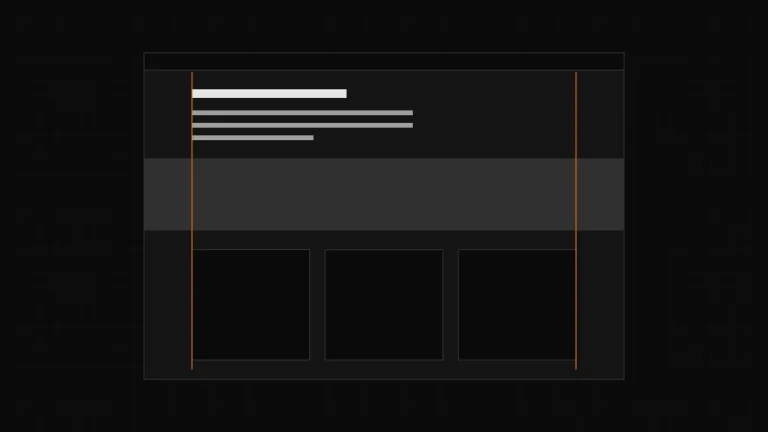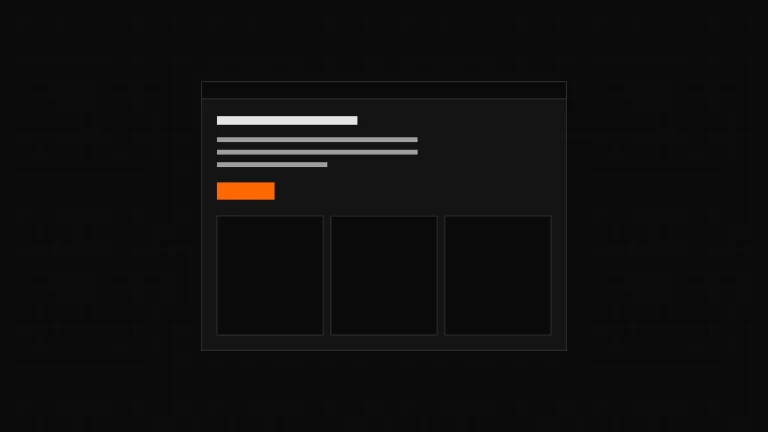

Since Leitvia Pro 0.8.33, designers who start in Figma and work with an AI agent through the Figma MCP server get Leitvia patterns as block markup instead of React. The Leitvia plugin for Figma builds every pattern as a component for Code Connect, and query loops stay loops from WordPress to Figma and back.
Transcript of the video
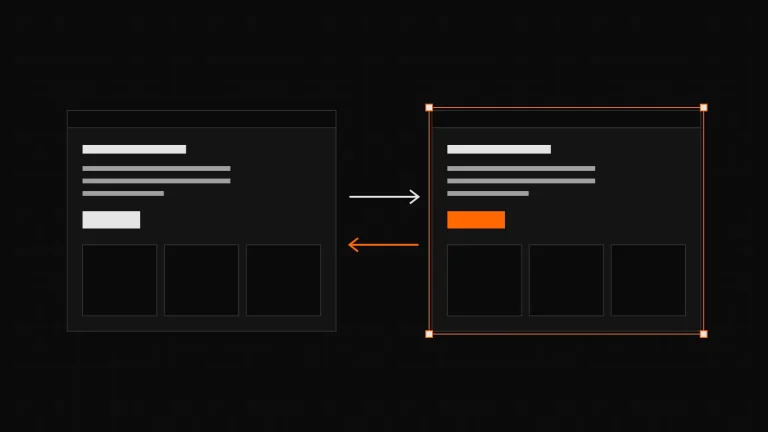
- Without a mapping, the Figma MCP server describes a frame as React. With Code Connect, as block markup. Drawing of a frame in Figma and two outputs: without a mapping a div with Tailwind classes, with Code Connect the block comments of WordPress.
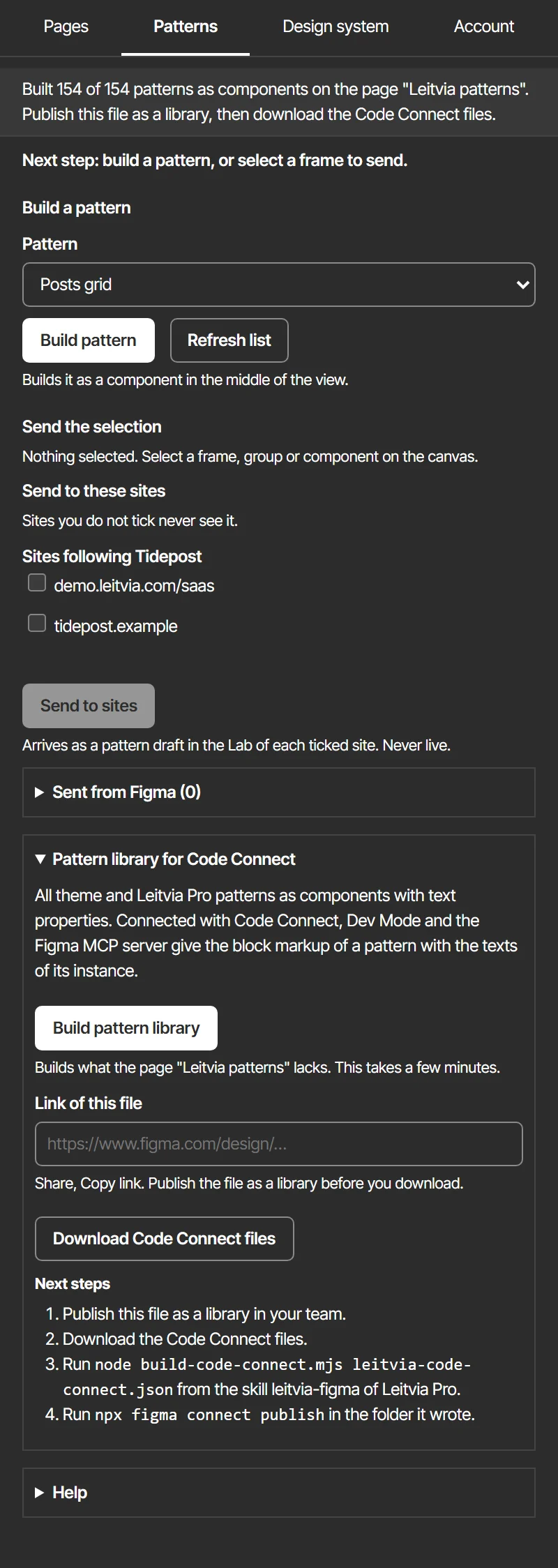
- In the Leitvia plugin, tab Patterns, “Build pattern library” builds every pattern as a component. Screenshot of the plugin, tab Patterns, with the section Pattern library for Code Connect open: the button Build pattern library, the field Link of this file and the button Download Code Connect files.
- Each text becomes a text property. Then publish the file as a library of your team. Screenshot of the plugin after the build: the status line says Built 154 of 154 patterns as components on the page Leitvia patterns, and to publish the file as a library, then download the Code Connect files.
- Download the Code Connect files, write the templates with the skill leitvia-figma and publish them. Drawing of four steps: publish the library in Figma, download leitvia-code-connect.json, run build-code-connect.mjs of the skill leitvia-figma, run figma connect publish with your own Figma token.
- Your AI agent now gets the block markup of the pattern, with the texts of the instance. Drawing of an instance with the changed heading Fresh bread daily and the snippet labeled WordPress with the same heading inside the block markup.
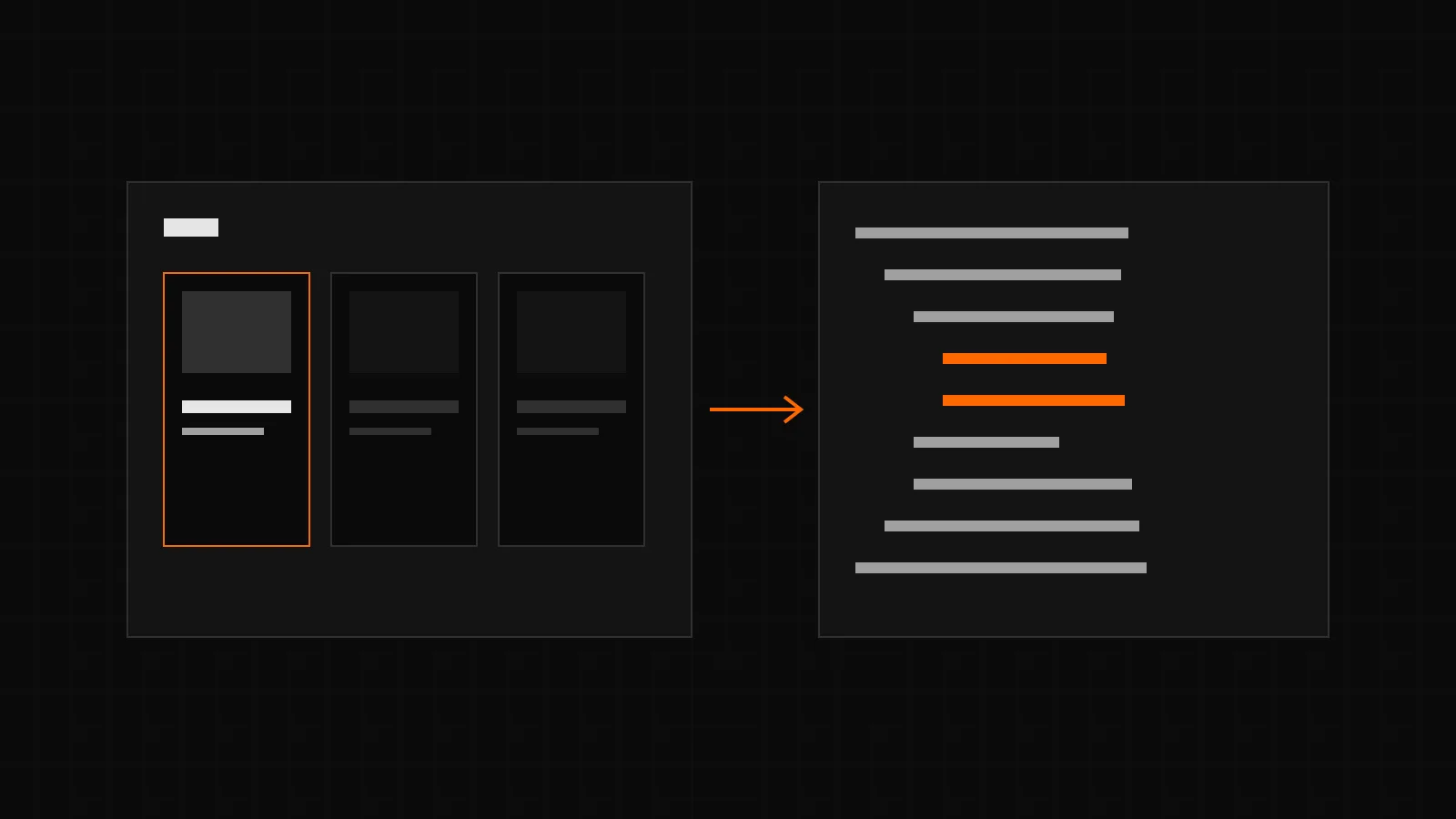
- Query loops stay loops: the entry once to design, its copies locked, the number as “Loop count”. Drawing of a query loop in Figma: the text Loop count with 6, a first card with [Post title] and [Post date] to design, and two greyed copies marked repeat, view only.
- Changes go back as the same blocks, as a change in the Inbox or a pattern draft in the Lab. Drawing of the Inbox with preview and diff of the change, and the Pattern Lab with a pattern draft.
- Nothing goes live on its own: a person applies or declines the change in WordPress. Drawing of a change with the buttons Apply and Decline, and an arrow to the live site that only Apply follows.
Why Code Connect
The Figma MCP server lets an AI agent such as Claude read a design. For a frame without a mapping it answers with React and Tailwind, and an agent that builds a WordPress site from that writes markup no block theme knows. Code Connect maps a Figma component to code. Since Figma recommends template files that are not tied to a framework, a template can return the block markup of a WordPress pattern. That is what the Leitvia plugin sets up for you.
A pattern library in four steps
- In the tab Patterns of the plugin, open “Pattern library for Code Connect” and choose “Build pattern library”. Every pattern of the theme and of Leitvia Pro becomes a component on the Figma page “Leitvia patterns”, and each of its texts a text property, named after its layer and its place in the pattern, for example “Heading 0/1/0”.
- Publish the file as a library of your team in Figma.
- Paste the link of the file and choose “Download Code Connect files”. You get leitvia-code-connect.json.
- Run the script build-code-connect.mjs of the skill leitvia-figma for AI agents on the download. It writes figma.config.json and one template file per pattern. Then run npx figma connect publish in that folder with your own Figma token.
From then on, get_design_context of the MCP server returns a snippet labeled WordPress for every instance of the library: the block markup of the pattern with the texts of that instance. Run the build again after an update of the theme or of Leitvia Pro with new patterns; it adds only what the page lacks.
What your AI agent does with it
Leitvia Pro now holds a second skill for AI agents, leitvia-figma, for agents that read designs through the Figma MCP server. It sets up the library as above and gives the agent clear rules. A snippet of Leitvia is taken as it is, only its texts may change. A frame without a snippet becomes the closest pattern of the design contract, or a new pattern draft in the Lab of the site, built from blocks and roles only. React, Tailwind, hex colors and pixel values never go in. Colors and sizes are changed as variables of the design system in the plugin, not by the agent, and nothing goes live from Figma.
Loops that stay loops
Query loops, entry lists of Leitvia Pro and product collections show content from the database, not from the design. Until now, Figma drew them as empty frames, and a page with a query loop was locked. Both changed.
- Fields such as the post title, the date or the featured image show as “[Post title]” or as an image placeholder, and their layer says
[data]. They go back as the same fields; the site keeps filling them. - You design the entry of a loop once. Up to five copies after it are locked and only show the rhythm of the list.
- The text “Loop count” holds how many entries the loop shows. Change it, and the loop goes back with the new number. In a grid, the number of columns of the entry goes back too.
- Pages with a query loop are no longer locked: you build them in Figma like any other page, and the loop returns as the same blocks with its query.
- Texts that come from a block binding, such as a phone number from the site settings, stay data. They get no text property, and their layer says
[data]. - In Code Connect, the number of entries is a text property too, so the snippet of a loop carries the number set on the instance.
What you need, and what does not travel
- Leitvia Pro Agency or Pro Agency Unlimited, and the Leitvia plugin in Figma.
- For Code Connect, Figma Professional or higher with a Dev or Full seat. Professional allows one library and one framework; a team that already connected React needs Organization for a second one.
- Inline formatting such as links or bold, images and Figma modes such as dark do not travel in a snippet. A page the plugin builds in another file uses its own components, without snippets.
Privacy
For the library, the plugin loads the patterns of the theme and of Leitvia Pro from leitvia.com; they hold no personal data. The plugin writes the file for Code Connect on your computer, and we receive nothing of it. The Code Connect command of Figma publishes the templates with your own Figma token. The privacy policy has the details.
Versions and guide
All of this comes with Leitvia Pro 0.8.33 and version 0.1.48 of the Leitvia account. The Figma guide has the steps, and the changelog lists every change.