
Whole pages now travel from a WordPress site to Figma and back. A designer edits them in Figma, the site gets the edits as one change in the Inbox, and a person decides there. This post covers the releases behind it: the theme Leitvia 1.2.9, Studio 1.3.9, Skills 1.4.11, Pro 0.8.4, the Figma plugin and the Leitvia account.
Transcript of the video
- A page on a WordPress site: the front page of the SaaS demo on demo.leitvia.com. Screenshot of the Tidepost front page with its headline, buttons and a product screenshot.
- In the page list, “Send to Figma” sends the whole page to your Leitvia account. Drawing of the page list in WordPress, the row action Send to Figma on one page and an arrow to the Leitvia account.
- In Figma, the Leitvia plugin lists the pages of your sites under Pages. Screenshot of the plugin, tab Pages: the design system Tidepost is connected, four pages from three sites wait to be built.
- “Build page” draws it in a frame 1440 pixels wide, each pattern as a main component. Drawing of the page frame, its sections as instances and their main components on the Figma page Leitvia patterns.
- Change texts on the page, the look in the main components, colors and sizes in the variables. Drawing of the three places to edit: a changed heading on the page, a changed main component and a changed color variable.
- “Review changes” sorts your edits into design system, patterns and page, open values first. Screenshot of the review: one changed variable, one changed pattern, three changes on the page, and one spacing of 28 pixels without a variable, with spacing/l (32) as the suggestion.
- The page arrives as one change in the Inbox, changed patterns as drafts in the Pattern Lab. Drawing of the Inbox with preview and diff of the change, and the Pattern Lab with a pattern draft.
- Nothing goes live on its own: a person applies or declines the change in WordPress. Drawing of a change with the buttons Apply and Decline, and an arrow to the live site that only Apply follows.
- Back in Figma, the plugin shows whether each page was sent, waits, was applied or declined. Screenshot of Sent from Figma in the plugin: Home applied, Pricing waiting in the Inbox, Features declined with the reason.
Pages from WordPress to Figma
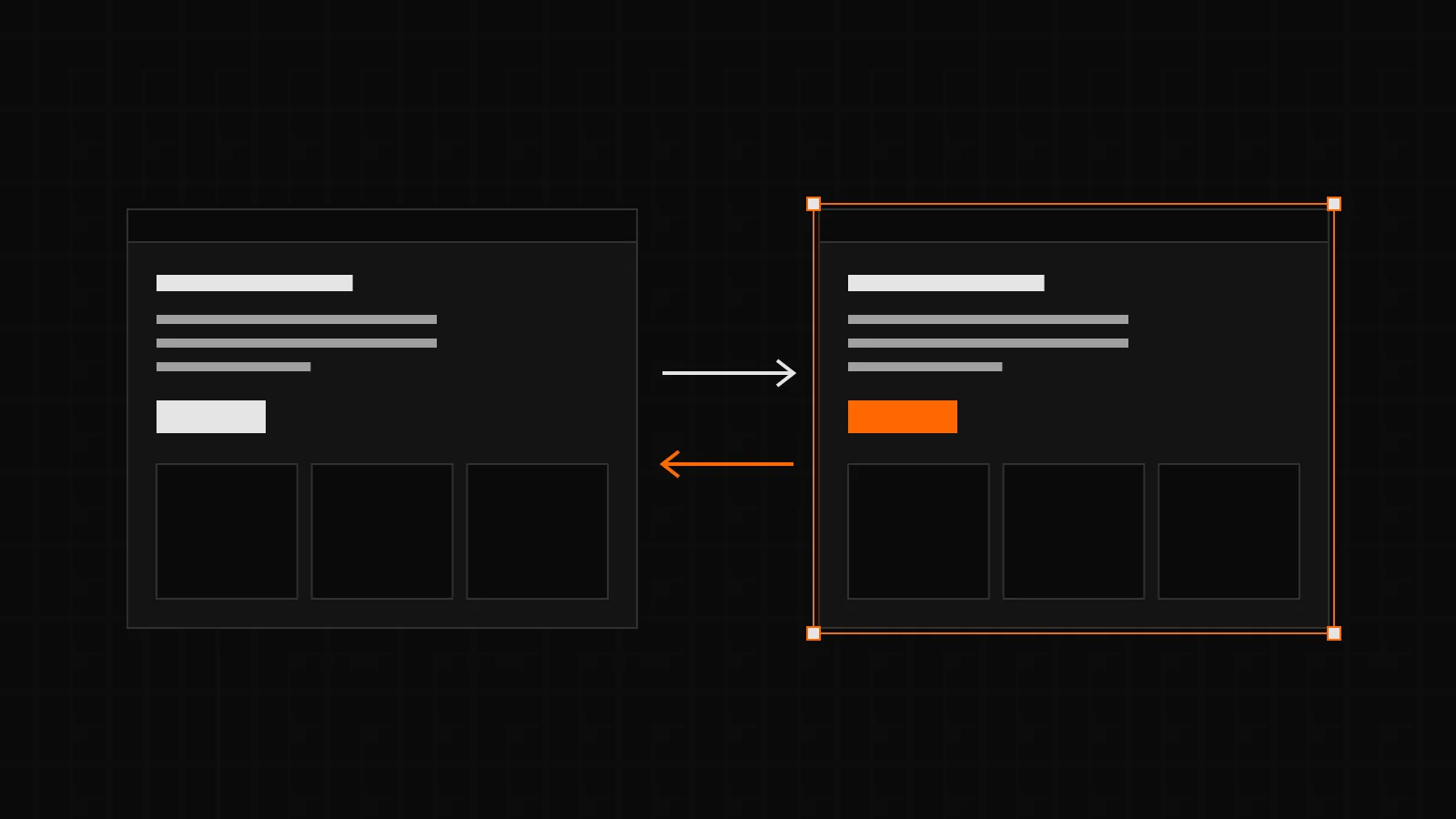
In the page and post lists, “Send to Figma” sends a whole page to your Leitvia account, if you like with its images reduced to 1200 pixels. In Figma, the Leitvia plugin lists the pages of your sites under Pages and builds the one you pick in a frame 1440 pixels wide. Each pattern of the page becomes a main component on the Figma page “Leitvia patterns”, and the page uses instances of it, so a change to a pattern shows on every page that uses it.
When the design system of the page does not match the file, the plugin asks first. You can load the version the page uses, build the page as the site looks with its own values, or build it with the variables of the file. Before it builds anything, the plugin checks that the fonts of the page are available in Figma and tells you which ones are missing.
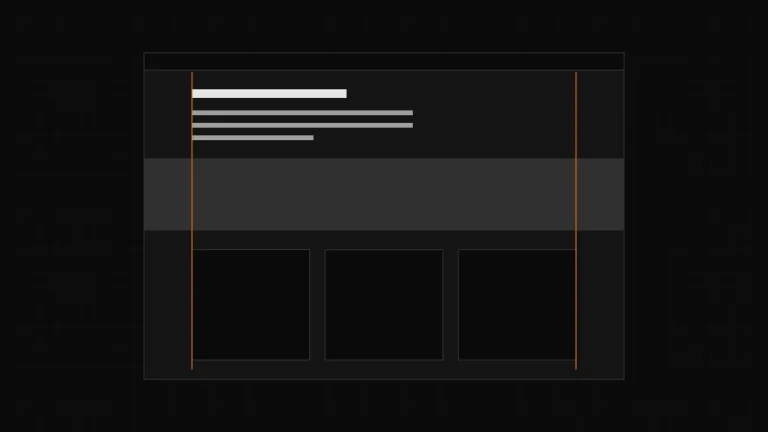
Grids, content widths and the aspect ratio of images follow the site. A table, and any other block Figma has no layer for, shows as the site renders it, as a locked view. You change those blocks in WordPress; they never go back from Figma.
Changes go back as a change in the Inbox
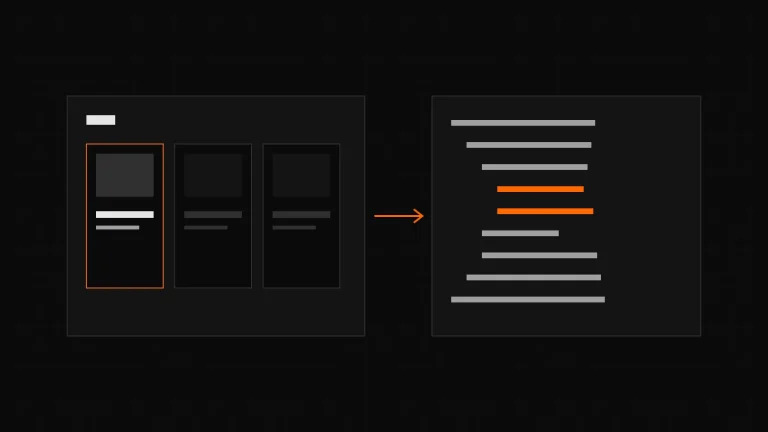
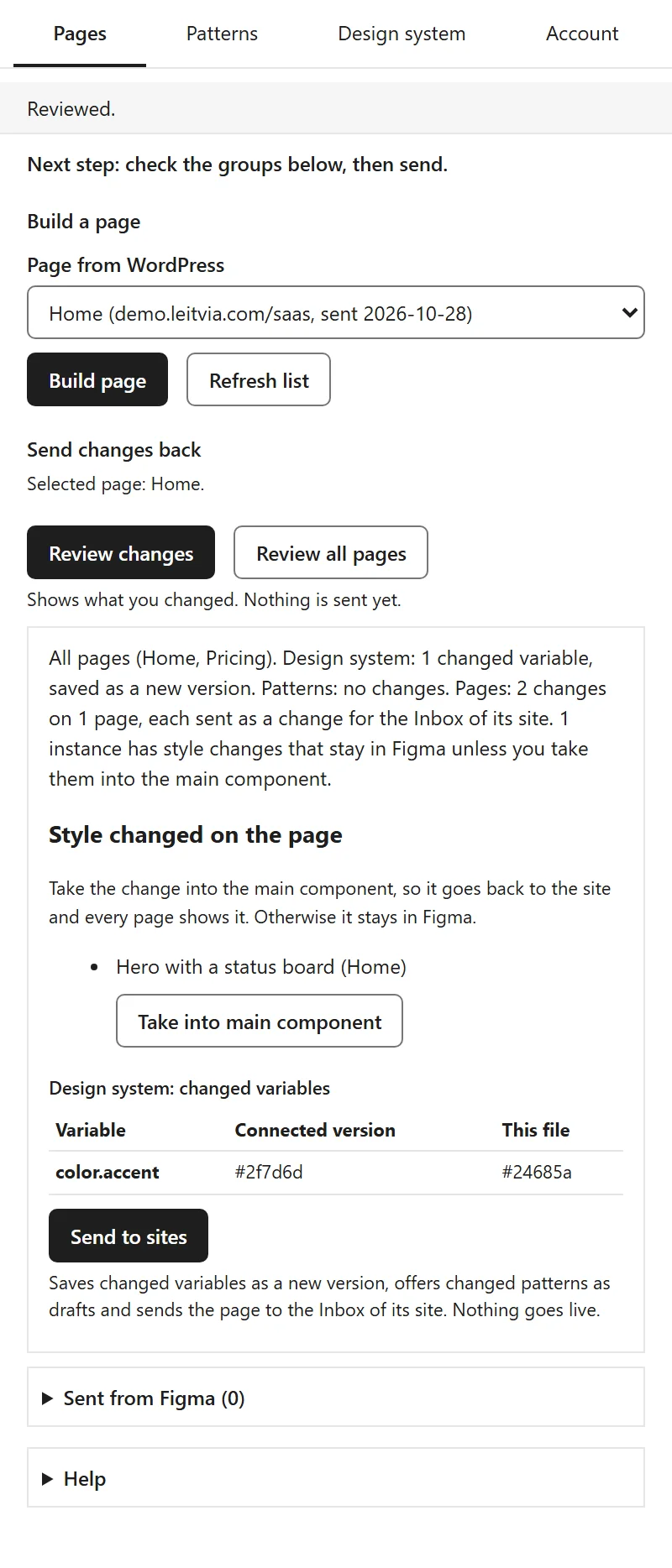
“Review changes” compares a built page with what the site sent and sorts the result into three groups. Changed variables become a new version of the design system. Changed main components go to the site as pattern drafts in the Pattern Lab. Changed texts, new or rebuilt sections and the order of sections become one change in the Inbox of Leitvia Studio, with preview, diff and rollback.
A page from Figma is always a change in the Inbox, even where the autonomy of the area is set to Autonomous. Only markup the site sent comes back, checked by its hash, and new sections must pass the same safety check as anything an AI agent writes. Free values that match no variable are listed first, with the nearest variable as a suggestion, and nothing is sent until each one is decided.
- “Review all pages” checks every built page of the file in one run. Each page goes to its own site as its own change.
- “Take into main component” moves style changes made on one instance, such as a fill, a font or a spacing, into the main component, so they reach every page. Texts stay on the page.
- The status trail shows for each page and pattern draft whether it was sent, is waiting in the Inbox or the Lab, was applied or declined, with the reason. The Inbox of the site lists what came from Figma.
Design systems with versions
One Figma file belongs to one design system, which any number of sites can follow. The plugin keeps it as Figma variables. “Save version” checks the contrast pairs of Studio in every mode and refuses to save while one fails. Saving changes no site. Only owners and admins of a team can release a version to the sites they tick; each site then gets it with its next check as a change in the Inbox.
The plugin itself is simpler now. It has four tabs in the order of the work, Pages, Patterns, Design system and Account, a line at the top with the next step, one main action per section and the rarely used options folded away. The Figma guide walks through it step by step.
The Leitvia connection
In Leitvia Pro, the screen “Design system hub” is now “Leitvia connection”. It shows when the site checks next and has a button “Check now”. The site checks hourly while a change waits or something from Figma is open, and twice a day otherwise.
“Save as design system” saves the active token set of the site in your Leitvia account, as a new design system or a new version, without releasing it. The site then follows it. You no longer download the token set and upload it in the account. A site that follows no design system yet saves one the same way with its first “Send to Figma”, so a new Figma file builds the page with the variables of the site without asking.
Security
- Every site gets its own site token with its first activation and uses it for the Leitvia connection, fleet reports and Figma, never the access key of the team. After updating Leitvia Pro, save the license key once so the site gets its token.
- AI agents that work with the fleet use their own agent tokens, created per person on the account page Fleet and limited to the role of that person.
- A design system reaches a site only as the version your team rolled out. A version saved later, by a member or from Figma, waits for a release by an owner or admin.
- Signing in to the Figma plugin asks you to type the code the plugin shows. “Send to Figma” needs the right to edit the theme, and a pattern from Figma goes only to the sites you tick.
- Owners and admins can show the access key of the team again under License in the account after entering their password. Every display is logged with person and time.
Nothing from Figma goes live on its own. It always waits until someone applies it in WordPress.
Privacy
The Figma plugin talks only to leitvia.com. The site keeps its content and patterns, your Leitvia account keeps the versions of the design system, and Figma is only the place where you work on them. Images from Figma do not travel back to the site. The privacy policy describes what the account stores for each page and pattern on the way.
Theme, Studio and industry kits
- Leitvia 1.2.9 shows its focus ring on a video while one of the controls of the video has focus.
- Leitvia 1.2.8 sets small meta text at 14 pixels instead of 13, and headings no longer force the finest optical size of a variable font, whose hairlines broke up on phones.
- Since Leitvia 1.2.3 the theme has three new header patterns, with a button, with a service bar of opening hours and phone, and with the logo in the middle, plus two new hero patterns.
- Leitvia Studio 1.3.8 lists the colors and fonts a change of the global styles touches in the Inbox, with their values before and after, instead of showing only JSON. In 1.3.9, patterns in draft or review stay out of the block inserter; the Pattern Lab still shows them.
- The industry kits of Leitvia Pro open with their own header and entry: the law firm and the restaurant with the logo in the middle, trades and health practice with a service bar above the header, the restaurant with a photo slider, and SaaS, public authority and association with a button for the main action in the header. The kits need Leitvia 1.2.3 and Leitvia Studio 1.3.4.
How to start
- On each site, Leitvia Pro with Pro Agency or Pro Agency Unlimited is connected under Leitvia Studio, Leitvia connection.
- In Figma, run the Leitvia plugin in a design file and choose “Sign in with Leitvia”. You confirm a code in your Leitvia account; nothing else leaves your computer.
- In WordPress, choose “Send to Figma” in the list of pages or posts.
- In the plugin, pick the page under Pages and choose “Build page”.
- Change the page in Figma, then choose “Review changes” or “Review all pages” and, when the summary is right, “Send to sites”.
- On the site, open the Inbox of Leitvia Studio, check the preview and the diff and apply the change. Nothing goes live before that.
Figma Design in the browser or the desktop app works with any Figma plan; light and dark as two modes need a paid Figma plan. The documentation of the Figma plugin covers every step, the limits and what never goes back from Figma.
What is free and what is Pro
The theme, Leitvia Studio and the skills stay free. The Leitvia connection and the industry kits are part of Leitvia Pro. The Figma plugin, sending pages to Figma and everything that comes back from it need Pro Agency or Pro Agency Unlimited. The pricing page lists the plans, and the changelog has every change of each release.